Clipchamp video editor is available as part of the Microsoft 365 license at Rollins College. To help you get started, this FAQ answers common questions about using the video editor on a browser or desktop app.
For the best experience:
Before you start using Clipchamp, follow these steps to ensure your browser settings are optimal for the best editing experience.
How to access Clipchamp?
There are several entry points to launch Clipchamp.
- The Microsoft 365 apps page, where you can select Clipchamp.
- The Clipchamp start page in Microsoft 365 for the web.
- From OneDrive or a SharePoint document library, where you can create a Clipchamp video editing project. To start from an existing video file, select it, then select Open > Edit in Clipchamp.
- The Microsoft Clipchamp video player interface, where you can start an editing project from a video if you have the required access permissions for the file.
- In the Clipchamp desktop app for Windows.
Using ClipChamp
In Clipchamp, you simply drag media to the timeline, extend or trim clips to adjust the duration, and preview the video by selecting Play. You can also record your screen or webcam and add additional audio and text to your video.
First, let's get familiar with the video editor:
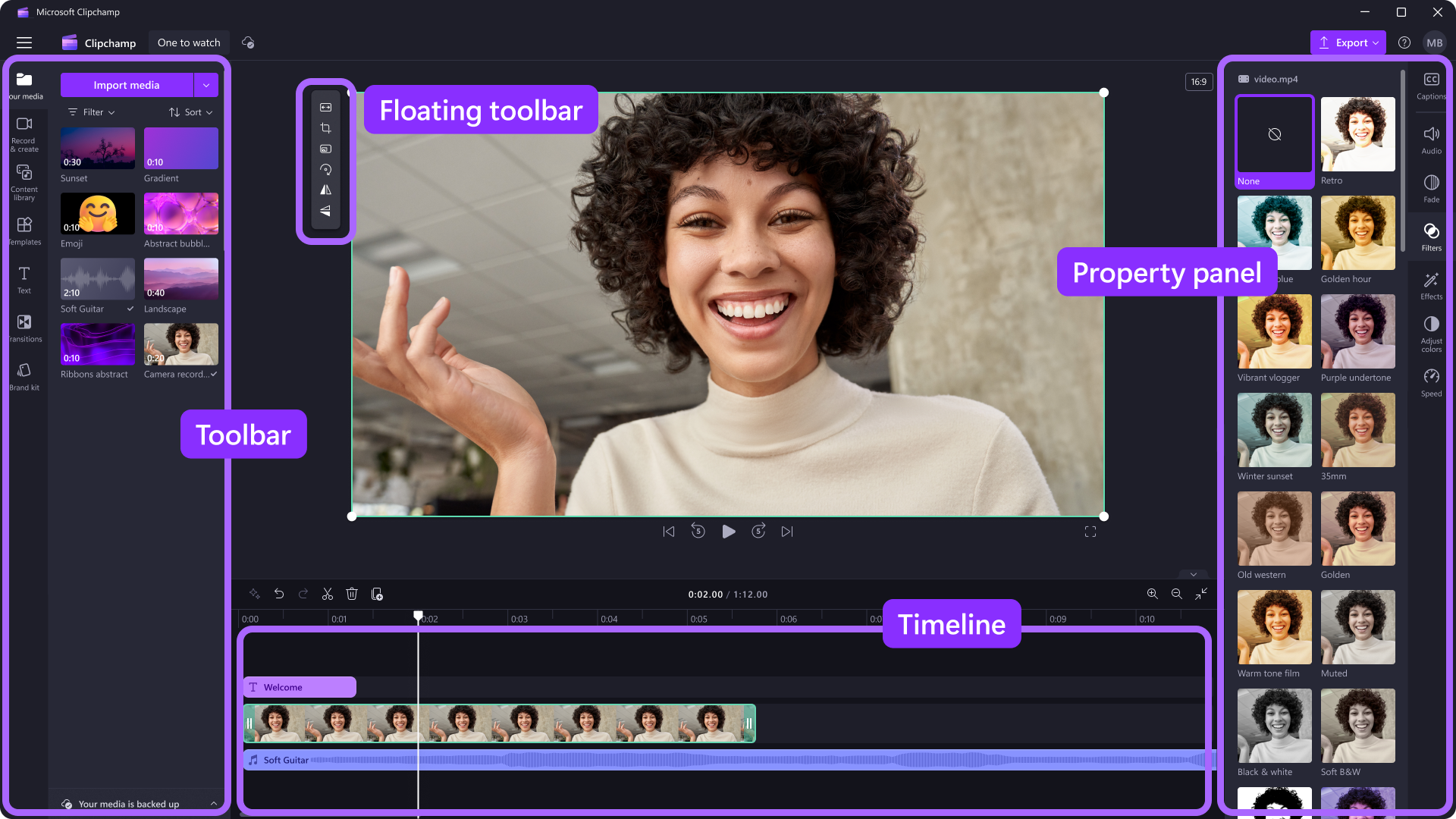
The interface in Clipchamp is beginner-friendly, helping you quickly locate all the professional editing functions, including the:
- Timeline
- Toolbar
- Floating toolbar
- Property panel
To begin editing your video:
-
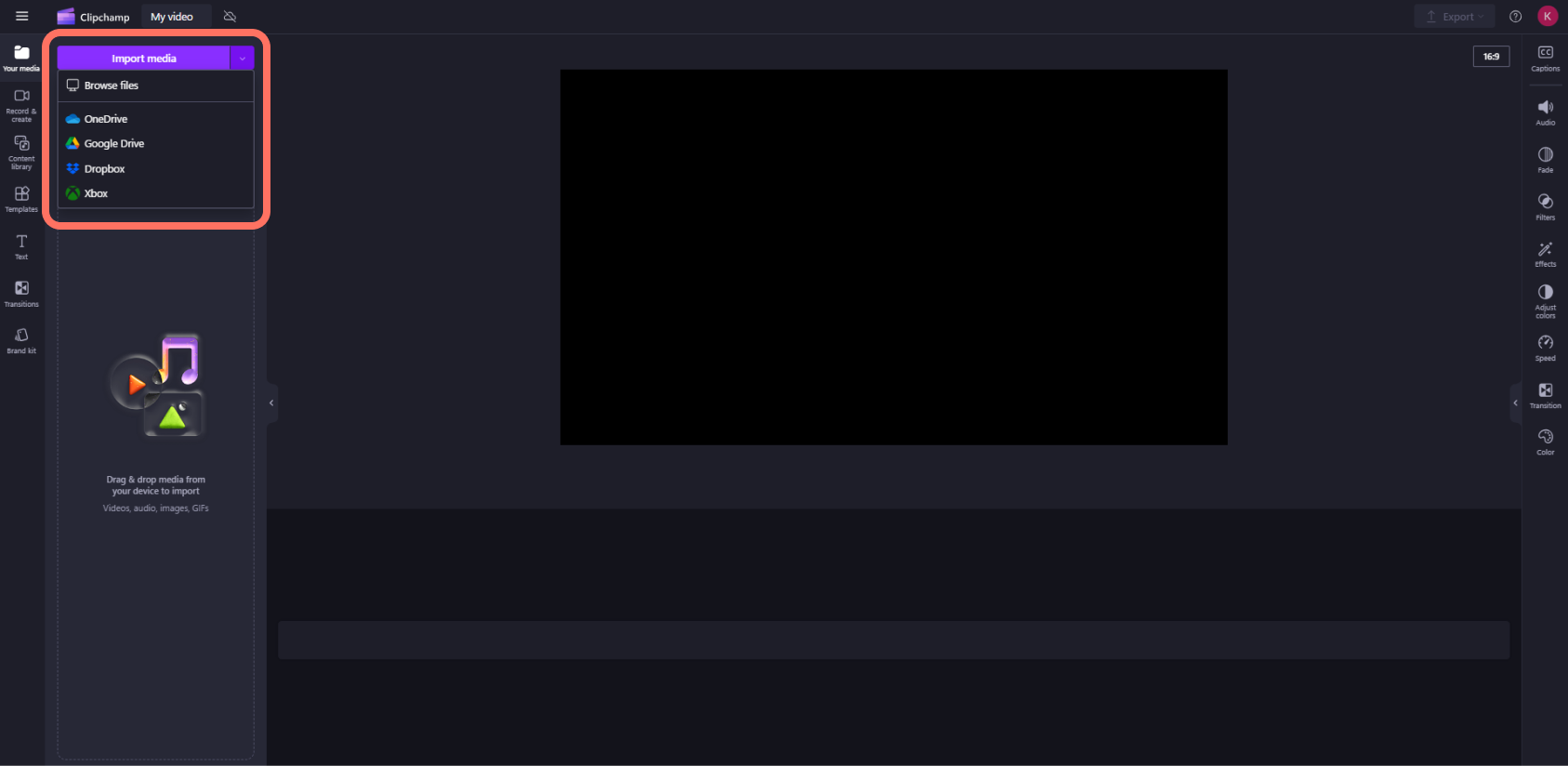
To add images, videos, and audio, select My media in the sidebar, and then select Import media.
-
Drag media to the timeline, extend or trim clips to adjust the duration, and preview the video by selecting Play.

-
You can also record your screen or webcam and add text to your video.
-
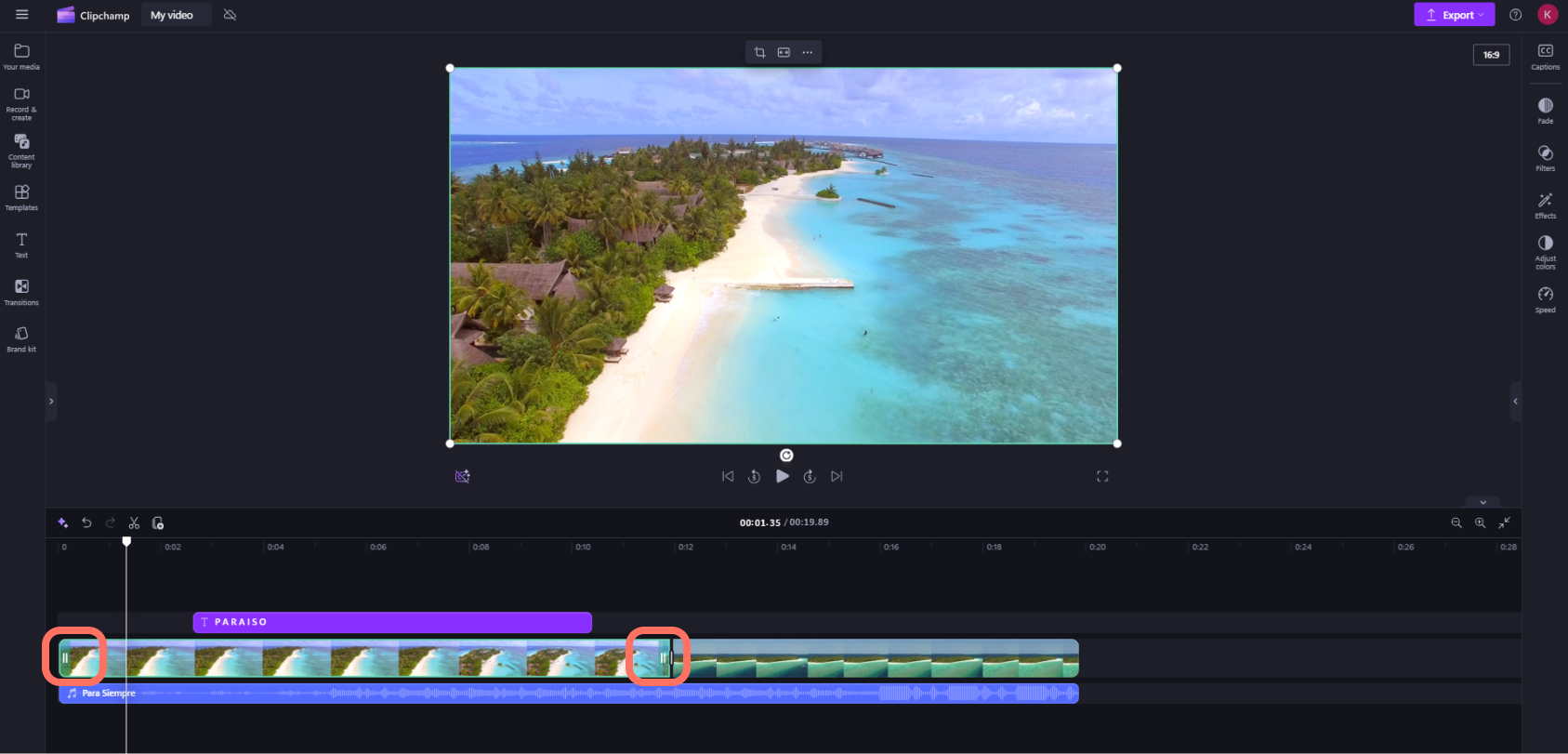
To trim an asset, click it on the timeline (i.e. click on it, so it is highlighted), then click and drag the green bars back and forth.
-
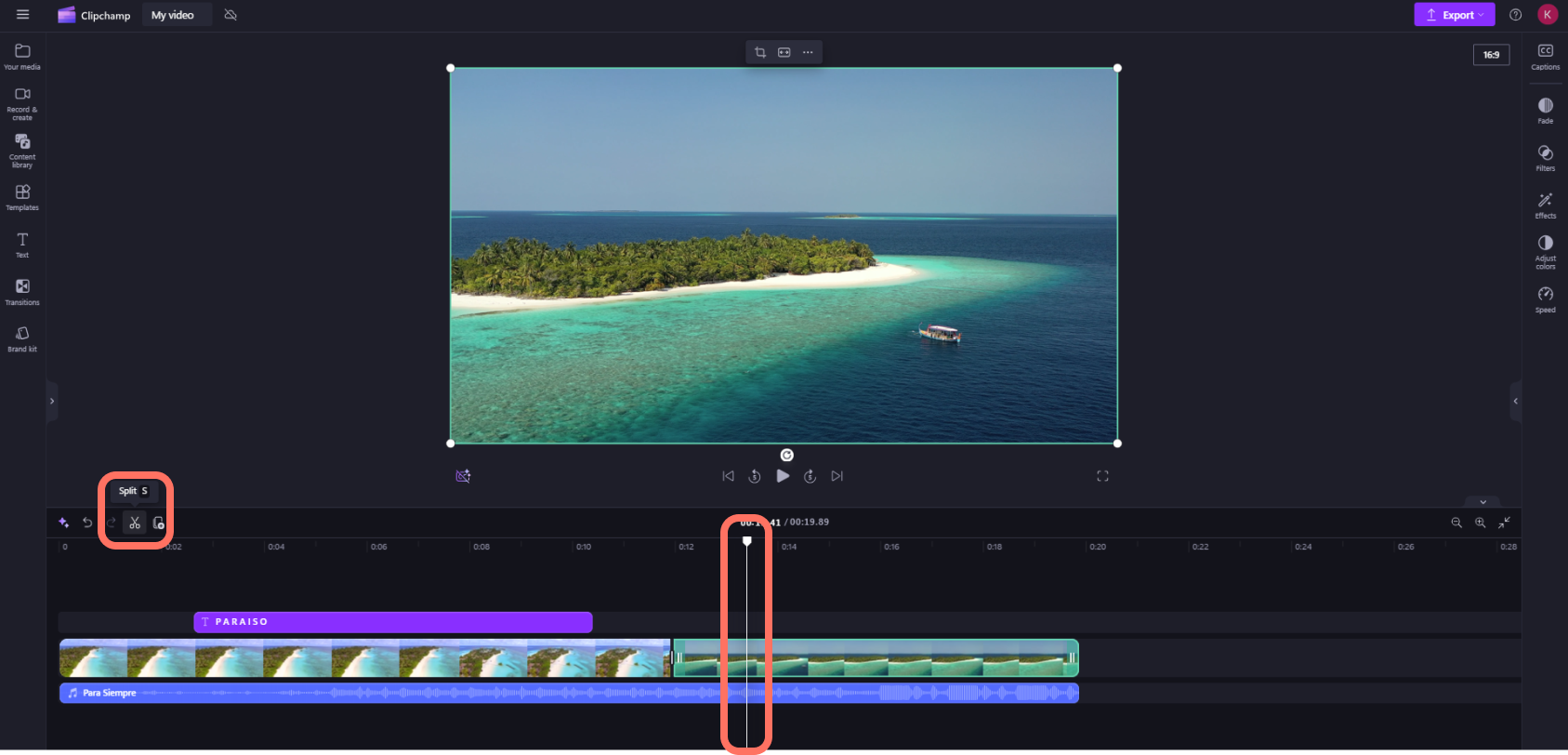
To split an asset in two, click on the clip on the timeline, then move the seeker (the white vertical line with the circle on top) so it is positioned where you want to cut the clip. Next, click the split button on the editing toolbar.
- To delete media from the timeline, click on the asset on the timeline, then click the delete button (trash icon) or hit the delete key on your keyboard.When you're finished editing, select Export, choose your export settings, and confirm the export.

- To add fades, filters, effects, adjust colors, change the volume, or edit the speed, use the features on the property panel.

- To add a title or text to your video, click on the text tab in the toolbar. Scroll through our text options to find the perfect title for your video. Drag and drop the title onto the timeline above your video asset or click on the + button to add it.
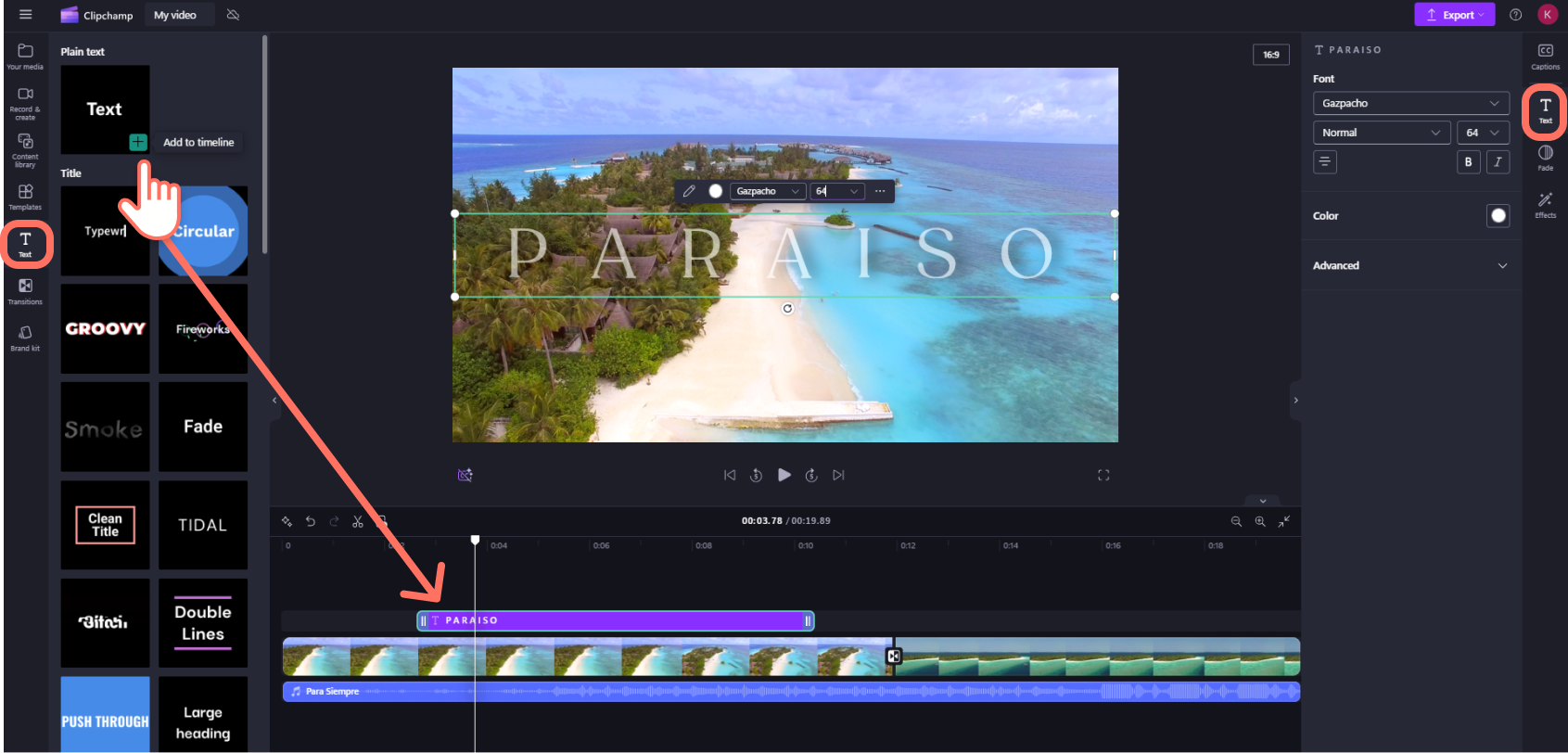
- When you are finished and ready to export your video, click on the export button at the top right corner of the editor. Select a video quality to save your video.

-
By default, the exported video is saved to OneDrive or SharePoint.
-
You can also save a copy to your computer.
For more information, see this article about Clipchamp, How can I edit a video with Clipchamp?
Equipment and hardware, such as video cameras, mics, and audio equipment, plus more, may be checked out at the Olin Library Circulation Desk; restrictions may apply.
For technical support, please contact the Helpdesk.
*This article was sourced and condensed from the Microsoft support site.